
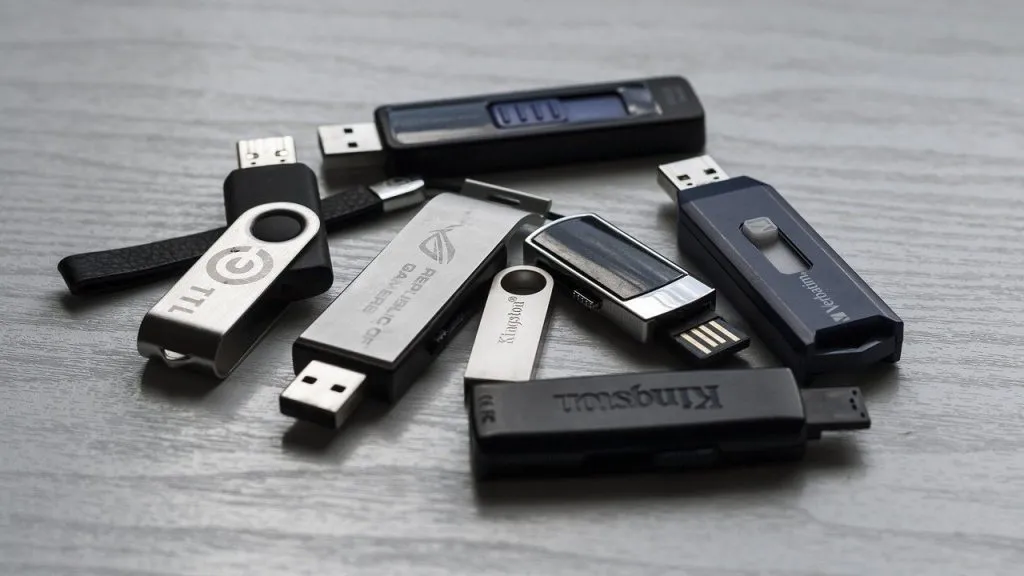
When you format a USB drive, your computer asks you to pick a file system. Most people click through with the default, and most of the time that works. But the file system decides which devices can read the drive, how large a single file can be and how well the drive copes with everyday use, so it is worth knowing what the options mean.
What a File System Actually Does
A file system is the set of rules a drive uses to organise data. It keeps track of where each file is stored, what it is called, how big it is and when it was changed. The flash memory inside the stick is the same whatever you choose. What changes is the way that memory is organised, and that in turn decides which operating systems and devices understand it.
The three file systems you will see most often on Windows are FAT32, exFAT and NTFS. Mac users will also see APFS and Mac OS Extended, which work well on Apple computers but are not read by Windows without extra software.
FAT32: The Most Compatible Choice
FAT32 has been around since the 1990s, and almost everything can read it: Windows, macOS, Linux, games consoles, car stereos, smart TVs, printers and cameras. If you need a drive that simply works in an older device, FAT32 is usually the safest option.
Its big limitation is file size. A single file on a FAT32 drive cannot be larger than 4 GB. That rules it out for large video files, disk images and many game files. Windows also only offers FAT32 in its standard format window for smaller drives, so on a larger stick you may not see it listed at all.
exFAT: Built for Flash Storage
exFAT was designed with flash drives and memory cards in mind. It removes the 4 GB file size limit while staying relatively simple, and current versions of Windows and macOS can both read and write it without any add-ons. Most modern Linux systems support it too.
For a USB drive that moves between a Windows PC and a Mac, exFAT is often the most practical choice. The main thing to check is older hardware: some older TVs, media players and car systems only understand FAT32, so test the drive in the device you plan to use before you fill it.
NTFS: Best Kept for Windows
NTFS is the file system Windows uses for its own internal drives. It supports very large files, file permissions, encryption and journaling, which helps it recover more cleanly if something goes wrong during a write. Those features make sense on a drive that stays connected to Windows machines.
The trade-off is compatibility. macOS can read NTFS drives but cannot write to them by default, and many TVs, consoles and other devices cannot use NTFS at all. If the drive only ever goes into Windows computers, NTFS is a solid choice. If it travels, exFAT is usually easier.
Formatting Tips Before You Start
Formatting erases everything on the drive, so copy anything you want to keep first. On Windows, a quick format only rebuilds the file system, while a full format also scans the drive for bad sectors and takes much longer. A full format can be useful on a drive you suspect is faulty.
Give the drive a clear volume label so you can tell it apart from others, and always eject it properly when you are done. Careful handling makes a real difference to how long a stick lasts, as we explain in our guide to USB drive lifespan. If you are still deciding which drive to buy in the first place, our article on choosing the right USB drive for different needs is a good place to start.
A Simple Rule of Thumb
Pick FAT32 when you need the widest compatibility and your files are under 4 GB. Pick exFAT for a general purpose drive that moves between Windows and Mac. Pick NTFS for a drive that stays in the Windows world. Choosing the right file system once saves you from reformatting and copying everything again later.