
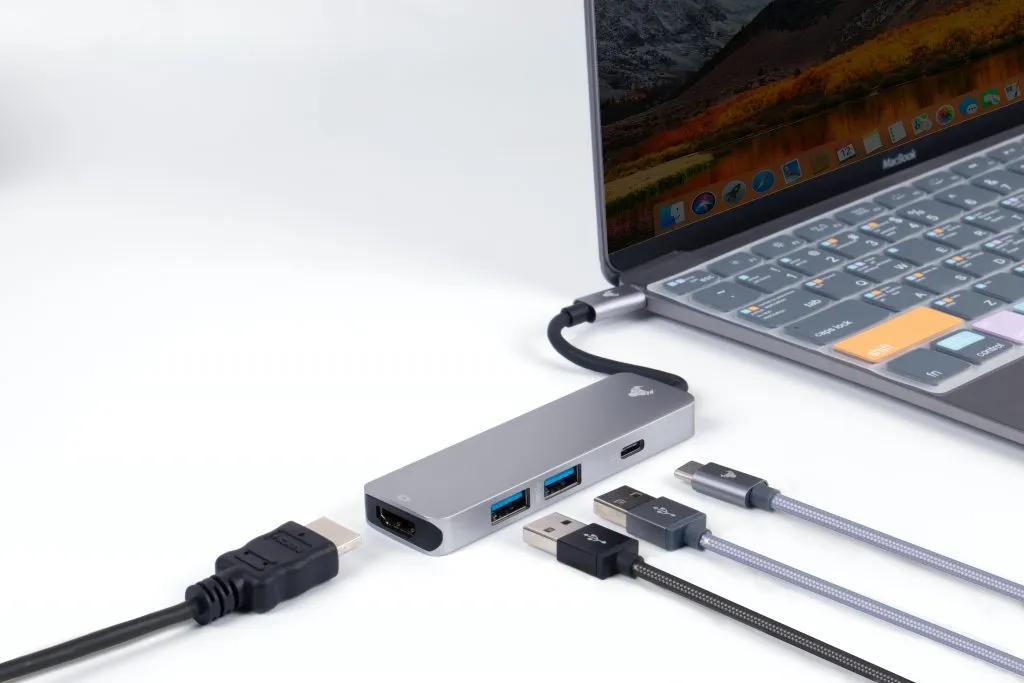
Modern laptops tend to have fewer ports than the devices we want to connect to them. A USB hub or dock is the obvious answer, but they are not all built the same way, and the differences show up as slow transfers, devices that disconnect or a monitor that stays black.
Here is what to look at before you plug everything into one adapter.
Hub or Dock: What Is the Difference?
A hub is the simpler of the two. It takes one USB port and splits it into several, so you can connect a keyboard, a mouse and a flash drive at the same time. Many small USB-C hubs also add an HDMI port or a card reader.
A dock usually does more. It is often designed to stay on a desk and may add several displays, an Ethernet port, audio and charging for the laptop through a single cable. The line between the two has blurred, so it is better to check the list of ports and features than to rely on the name.
Power: Bus-Powered or Self-Powered
A bus-powered hub takes all its power from the computer port it is plugged into. That power is shared between every device connected to the hub. It is fine for a mouse, a keyboard and a USB stick, but it can struggle with external hard drives, which may draw more current when they spin up.
A self-powered hub has its own power adapter. It can supply each port properly, which makes it a better choice for external hard drives, several devices at once or anything that charges from USB. If a drive keeps disconnecting on a hub, a lack of power is one of the first things to check.
Bandwidth Is Shared
A hub does not add speed. Every port on it shares the single connection back to the computer. If you copy files to two external drives at once through the same hub, each one gets part of the available bandwidth.
The hub is also limited by its own standard. A USB 2.0 hub will run a fast USB 3 flash drive at USB 2.0 speeds, and a hub connected to a USB 2.0 port on the computer is limited in the same way. For backups and large file copies, a hub that supports at least USB 3.0 speeds on both sides makes a clear difference.
Video and Charging Through USB-C
Many USB-C hubs offer an HDMI or DisplayPort output, but video only works if the laptop's USB-C port supports video output, often called DisplayPort Alternate Mode. Not every USB-C port does, so check your laptop's specifications before relying on a hub for a monitor. Our USB C tips and facts explain why the same connector can support very different features.
Pass-through charging lets you connect your laptop charger to the hub and still charge the computer. The hub keeps a small share of that power for itself and its ports, so the laptop may receive a little less than the charger provides on its own.
Practical Tips for Everyday Use
Plug power-hungry devices such as external hard drives straight into the computer or into a self-powered hub. Avoid chaining several hubs together, as each extra link adds another point where power and signal can drop. Keep hubs away from heat, since small aluminium hubs can get warm when every port is in use.
Finally, remember to eject drives before unplugging the hub itself. Pulling the hub out disconnects everything on it at once, which carries the same risk of corrupted files as pulling out a single drive mid-transfer.
Choose a hub with the ports, power and speed your setup actually needs, and it will quietly do its job for years.