
You plug in a USB drive, start copying a folder and the progress bar barely moves. Slow transfers are one of the most common complaints about flash drives, and the cause is not always the drive itself. Often it is the port, the cable, the type of files or the way the drive is set up.
Here are the usual suspects and what you can do about each one.
The Port Matters More Than You Think
A USB 3 drive plugged into a USB 2.0 port will only run at USB 2.0 speed, which is many times slower. Older computers often have a mix of both. USB 3.0 ports are frequently marked with blue plastic inside or an SS symbol next to them, although not every manufacturer follows that convention, so check your computer's documentation if you are unsure.
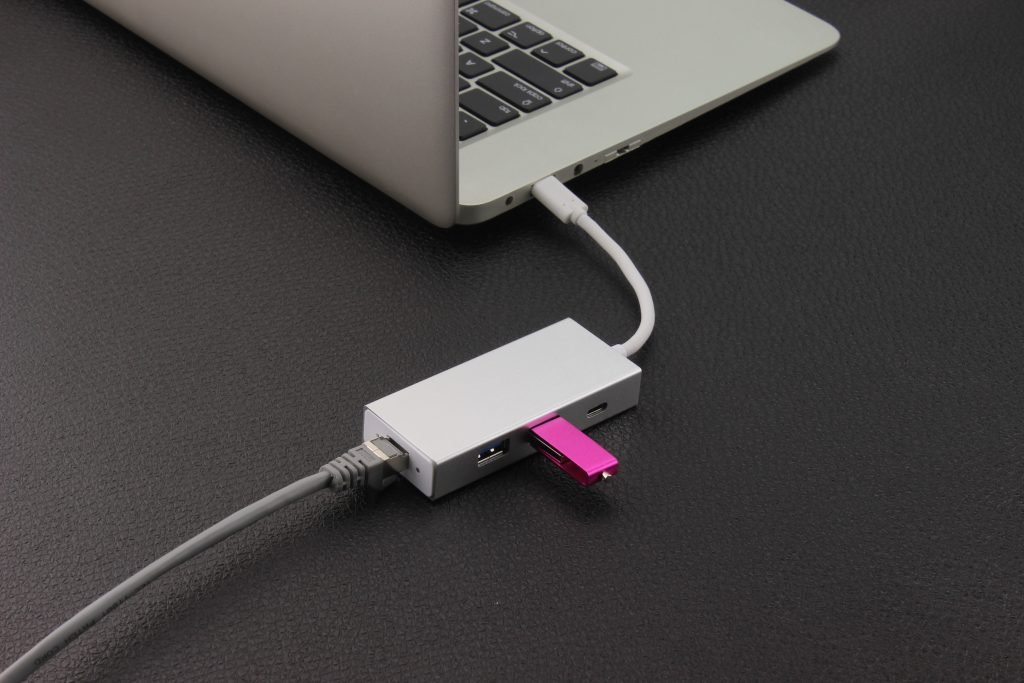
The same goes for hubs, extension cables and front panel ports on desktop PCs. If any part of the chain only supports USB 2.0, the whole connection drops to that speed. Plugging the drive directly into a port on the computer itself is the quickest test.
Many Small Files Copy Slowly
Copying one large video file is usually much faster than copying the same amount of data spread over thousands of small files. Every file needs its own entry in the file system, so the drive spends a lot of time on housekeeping rather than writing data.
If you regularly move folders full of photos or documents, compressing them into a single archive before copying can save a surprising amount of time.
Writing Is Slower Than Reading
Flash memory reads data more quickly than it writes it, and on many budget drives the difference is large. Some drives also use a small fast cache that handles the first part of a big copy quickly, after which the speed drops once the cache is full. That is why a transfer can start fast and then slow down halfway through.
The quality of the controller and the memory chips plays a big part here. Our article on the structure of USB drives explains what is inside a typical stick and why two drives of the same size can perform very differently.
A Full or Worn Drive
Drives that are almost full can slow down, as there is less free space for the controller to work with. Drives that have been written to heavily over the years can also become slower and less reliable as the memory cells wear. Slow transfers combined with copy errors or disconnections are a sign to back up the drive and replace it. You can read more about the warning signs in our guide to USB drive lifespan.
Be careful with very cheap, unbranded high-capacity drives as well. Some counterfeit drives report more space than they really have and are often very slow, and files written beyond their real capacity can be lost.
Settings and Simple Fixes
On Windows, the drive's removal policy can be switched from Quick removal to Better performance in Device Manager. This allows write caching and can speed up transfers, but it means you must always use Safely Remove Hardware before unplugging the drive.
Reformatting can also help, especially if the drive was formatted for an older device. Back up your files first, then format it with a file system that suits how you use it. Keep the computer's USB drivers and operating system up to date, and try the drive in another computer to rule out the port.
Most slow USB drives can be sped up with a better port, a different file system or a little patience with large batches of small files. If none of that helps, the drive may simply be reaching the end of its working life.